
Over the macOS: Why Your Magic Mouse is Flying Away [12 Dec 2025]
Author: MikeTurkey, in conversation with claude
Date: 12 Dec 2025
Other Languages
AI-translated articles, except English and Japanese version.
Introduction
Around November 2025, my Magic Mouse on an Intel Mac mini(2018) started acting up—it just wouldn't move smoothly anymore.
What should you do when you run into this kind of trouble?
Sometimes you need to approach things from multiple angles, so I hope my experience can be helpful to others.
How About Lightening macOS Graphics Processing?
macOS Sequoia applies various visual effects to make the screen look beautiful. I decided to turn some of these off.
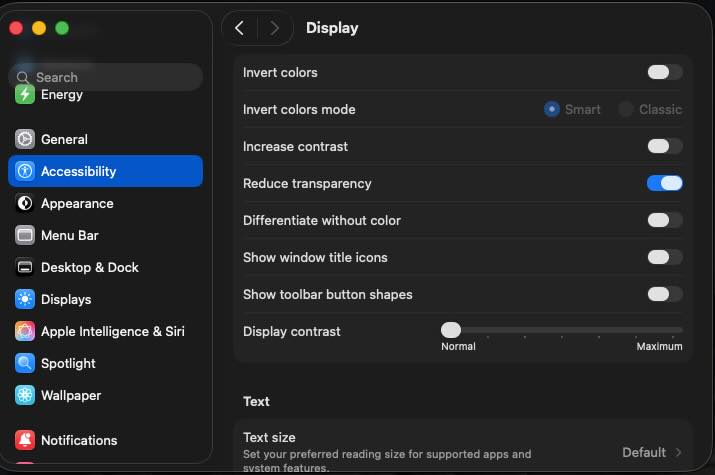
Enable "Reduce Transparency"
System Settings → Accessibility → DisplayWhen you turn on "Reduce transparency" in macOS, here's what happens:Changes in Rendering
Normally, macOS applies translucent effects to the menu bar, Dock, sidebars, notification center, and more.This creates a see-through effect with blurred backgrounds, using real-time GPU processing like Gaussian blur.When you enable "Reduce transparency," these translucent layers are replaced with solid colors (or gradients).Specifically, UI elements with transparency effects like NSVisualEffectView are disabled or simplified system-wide.Technical Impact
Since real-time blur calculations by the GPU are no longer needed, the rendering load is reduced.This can improve performance during window movement and resizing, especially on older Macs or systems with integrated GPUs. VRAM usage also decreases slightly.Accessibility Benefits
Visual contrast becomes clearer, and text that was hard to read due to showing through backgrounds becomes easier to see.This is actually the original purpose of the feature—it's designed to help users with visual difficulties.
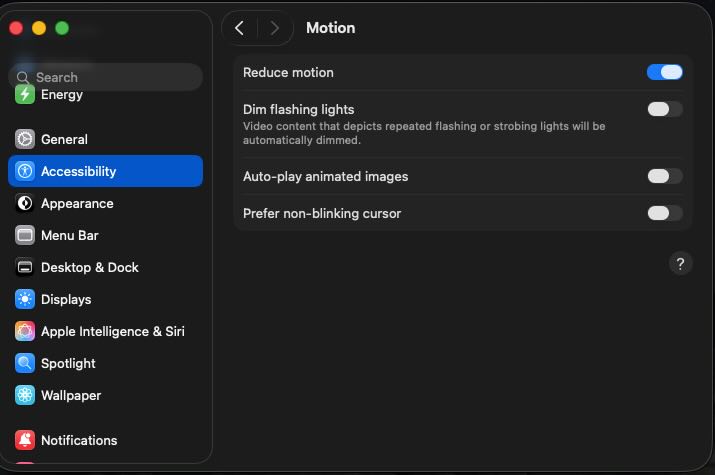
Enable "Reduce Motion"
System Settings → AccessibilityWhen you turn on "Reduce motion" in macOS, here's what changes:Changes in Rendering
Simplified Animation Effects
The zoom animations when opening and closing windows are replaced with simple fade in/out effects.Screen transitions in Dock, Mission Control, and Launchpad become simpler, and the "slide" effects when switching Spaces or full-screen modes are reduced.Disabled Visual Effects
The layered depth effects behind wallpapers and the Dock stop moving.Blur and blend effects when displaying panels like Notification Center are minimized.Dynamic transparency changes from overlapping windows are reduced, and translucent effects on the menu bar, Dock, and sidebars are lightened or disabled.Reduced Graphics Processing
Complex compositing by the Core Animation framework is skipped, and 3D transformations and transparency calculations using the GPU are simplified.This reduces frame-by-frame real-time rendering.
Technical Impact
CPU/GPU usage is reduced, with particularly noticeable effects on older Macs or systems with integrated GPUs.You can also expect improved battery life and reduced heat generation, along with better overall system responsiveness.This setting is useful when you prioritize practicality and performance over visual flair. It doesn't affect basic system functions, but the UI experience becomes noticeably simpler.Accessibility Benefits
Comfort improves for those sensitive to motion, helping reduce motion sickness.The reduced visual complexity lowers cognitive load, and screen transitions become more predictable.With fewer elements causing distraction, you get a work environment that's easier to focus in.
After making these changes, I saw some improvement, but the mouse cursor still wasn't moving smoothly.I was still stuck.
The Classic Fix: Disabling Spotlight
Disabling Spotlight has long been a common solution when macOS feels sluggish, so I tried this too.
Multiple mdworker processes running in the background can cause the system to become slow.
In the past, you had to go through the hassle of disabling SIP with csrutil and stopping daemons with launchctl,
but nowadays it's simpler:
$ mdutil -a -i off
The result? No real change.
Still, this fix works in many cases, so it's worth trying.
Why Only Me?
At some point, I noticed that I was the only one experiencing this problem.
The symptoms got worse starting in November, and they only appeared when I used the mouse.
Considering the symptoms, "static electricity" became a prime suspect.
I tried touching a grounding terminal to discharge the static electricity, and sure enough—the mouse started working properly again.
The Magic Mouse has touch sensors that operate using capacitance. When you're carrying static electricity, these sensors apparently go haywire.
But even after figuring out the cause, I had a major inconvenience: the mouse only worked properly while I was touching the grounding terminal.
I should have just worn an anti-static wrist strap while using the Mac, but at the time I didn't think of it. Instead, I kept working while holding onto a ground wire with one hand the whole time.
Looking back, that wasn't exactly the smartest approach.
The Problem Mysteriously Disappears
Sometime in December, I noticed the mouse was moving smoothly even without touching the ground wire.
Had my body stopped building up static electricity? No way. It was getting drier, so if anything, static should have been getting worse.
I thought back to what happened in November. Could it be... the solar flare?
An X5.1 class flare—one of the largest of this solar cycle.
The timing matched when my symptoms got worse... or so I'd like to say. But thinking about it rationally, I've never heard of a solar flare affecting someone's personal Magic Mouse.
Power grids and satellite communications, sure, but a mouse on my desk? Hard to believe.
Still, when a mysterious problem resolves itself for unknown reasons, thinking "maybe it was the solar flare?" might just be a quirk of how my mind works.
The truth remains unknown, but I'm recording it as an interesting coincidence.
By the way, there's no way to prevent solar flares themselves.
However, to protect your Mac from damage, it's recommended to unplug it from the power outlet when strong solar flares are predicted.
Summary
When mouse behavior becomes unstable on macOS, a step-by-step approach considering multiple causes is effective.
In this case, I tried the following:
System Settings Optimization
Enabling "Reduce transparency" and "Reduce motion" lightened the GPU load and provided some improvement.These settings are especially effective on older Macs or systems with integrated GPUs.Disabling Spotlight
I tried disabling Spotlight with the mdutil command, but it didn't have much effect this time.However, it can be an effective measure when background processing is heavy.The Real Cause: Environmental Factors
Ultimately, the cause of the mouse malfunction turned out to be static electricity.Since the Magic Mouse's touch sensors operate on capacitance, they malfunction when the user is carrying static charge.Possible Additional External Factor
It's interesting that the timing of the symptoms worsening in November and naturally resolving in December coincided with the large X5.1 class solar flare that occurred on Veterans Day.Generally, solar flares are known to affect large-scale infrastructure (power grids, communication satellites), but there's no scientific consensus on their direct effects on personal electronics.However, timing coincidences like this one can't be completely dismissed, so I hope this might serve as a reference for someone.
What we can learn from this troubleshooting experience is that we need to consider environmental factors like static electricity and space weather, not just software and hardware settings.
Static electricity was the main cause, but I found it interesting that it coincidentally overlapped with the solar flare period, so I'm recording it as a possibility.
It's important not to fixate solely on technical solutions, but to approach problems from multiple perspectives.
License
2023-2026 Copyright MikeTurkey All rights reserved.
Scope: This license applies to all non-code text content on miketurkey.com.
- Unauthorized copying and republication of this document is prohibited.
- Direct linking to this URL is permitted.
- If cited, summarized, or transformed, this copyright notice must be retained.
Banner illustration: Generated by MikeTurkey using DALL-E 3 (ChatGPT)
Screenshot: macOS interface